
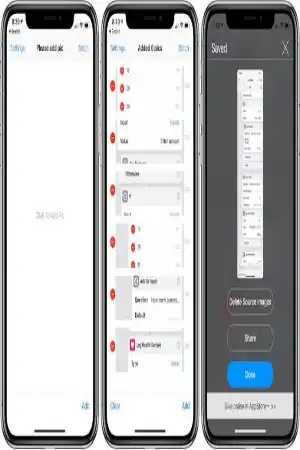

StitchPics-Stitch Screenshots is a screenshot and photo-stitching utility designed for iPhone and iPad users who want to combine multiple images into one long picture. The app can automatically recognize overlapping areas between screenshots, making it useful for creating long conversations, webpage captures, movie subtitles, tutorials, and other extended images.
Unlike a basic collage editor, StitchPics focuses heavily on vertical screenshot stitching and long-image creation. It also provides manual stitching tools, collage layouts, annotations, mosaics, cropping, and other editing functions. The App Store describes it as an app for creating photo collages, long screenshots, and super-long pictures while preserving the clarity of the original images.
The app is free to download with optional in-app purchases. Apple currently lists a Pro Upgrade, while the core stitching purpose remains available in the free version.
StitchPics-Stitch Screenshots Features and Functions
Automatic Screenshot Stitching
One of the main functions of StitchPics is automatic image stitching. You can select multiple screenshots, and the app attempts to recognize matching areas and combine them into a continuous image.
This is especially useful when several screenshots were captured from the same conversation, webpage, article, or application. Instead of manually placing every screenshot, automatic recognition can reduce the amount of editing required.
Long Screenshot Creation
StitchPics can create long screenshots from multiple individual screenshots. This makes it possible to turn a sequence of images into one vertically extended picture.
Long images are useful for saving conversations, tutorials, product information, articles, lists, and other content that does not fit into one normal screenshot.
Intelligent Chat Screenshot Stitching
The app specifically supports intelligent stitching for chat records. If you have multiple screenshots from a messaging conversation, StitchPics can identify their matching areas and combine them into a continuous image.
This can make a long conversation much easier to read and share because the content is kept together instead of being separated across numerous files.
Manual Stitching
Automatic recognition is not the only option. StitchPics also provides manual stitching functionality, allowing you to adjust the positioning of images when automatic alignment does not produce the result you want.
This is useful for screenshots with unusual layouts, different spacing, or content that is difficult for automatic recognition to match.
Original Image Quality
The App Store states that the app can preserve the clarity of the original images rather than unnecessarily reducing image quality during the stitching process.
This can be important when your screenshots contain small text, interface elements, documents, or other details that need to remain readable.
Photo Collage Creation
StitchPics is also a photo collage tool. You can arrange multiple pictures into different layouts instead of creating only one long vertical screenshot.
The app supports horizontal puzzles and template-based layouts, giving users additional ways to combine photographs and screenshots.
Multiple Layout Modes
Different layouts allow you to create images according to the type of content you are combining.
For example, you can arrange images horizontally, use available templates, or create a more traditional collage. This makes StitchPics useful beyond screenshot stitching.
Super Long Picture Editing
After creating a long image, you can continue editing it inside the app. StitchPics includes tools intended for working with super-long pictures.
This can be useful when you want to clean up the final image, add explanations, hide sensitive information, or make the result more presentable.
Annotation Tools
The application provides annotation functionality for marking up screenshots and stitched images.
Annotations can be useful for tutorials, explanations, reviews, instructions, and personal notes. You can use editing tools to draw attention to particular areas of an image.
Mosaic Tool
StitchPics includes a mosaic function that can be used to obscure parts of an image.
This can be useful when a screenshot contains private information, names, profile pictures, account details, or other content that should not appear in a shared image.
Cropping Tools
The app also provides image cropping functionality. Cropping allows you to remove unnecessary areas before or after stitching.
According to the App Store’s version history, additional cropping methods were introduced in an update, expanding the editing options available inside the application.
Edge Tearing Effect
StitchPics includes an edge-tearing effect for certain image-editing situations. This can give a long image a more distinctive visual appearance and help separate different sections of a stitched picture.
The feature was added in a previous update according to the published version history.
Color Picker
A color picker was added in an earlier update, providing more control when working with colors inside the editing interface.
This can be useful when annotations or editing elements need to match an existing image or design.
Grouping Function
The app has also received a grouping function that can help organize selected content during the editing process.
Collage Templates
Recent listed version history includes collage template improvements. Templates can make it quicker to create structured image combinations without manually designing every element.
Subtitle Templates
StitchPics has also introduced subtitle templates through previous updates, adding another option for creating or editing visual content containing text.
How to Use StitchPics on iPhone and iPad
Step 1: Prepare Your Screenshots
First, capture the screenshots you want to combine. For a conversation or webpage, make sure consecutive screenshots contain enough overlapping content for automatic recognition to work effectively.
Step 2: Open StitchPics
Launch StitchPics and choose the stitching or collage workflow you want to use. Select the images from your Photos library.
Step 3: Select Multiple Images
Choose the screenshots or photographs that you want to combine. Arrange them in the required order if necessary.
Step 4: Let the App Stitch Automatically
For compatible screenshots, use automatic stitching. The app will analyze the selected images and attempt to identify matching sections.
Step 5: Adjust the Result
If the automatic result needs correction, use the manual stitching controls to reposition images and improve the alignment.
Step 6: Edit the Finished Image
Once the images are combined, you can use available editing functions such as cropping, annotation, mosaic effects, and other tools.
Step 7: Save and Share
After finishing your edits, save the completed image and use the iOS sharing options to send it to another app, contact, or social platform.
Who Should Use StitchPics?
For Students
Students can use StitchPics to combine screenshots of study materials, notes, online lessons, instructions, and reference information into longer images.
For Social Media Users
Content creators can use stitched screenshots and collages when they need to present more information than a standard screenshot can contain.
For Business Users
The app can help combine conversations, instructions, product information, or other visual material into a single shareable image.
For Everyday iPhone Users
Anyone who frequently takes screenshots can benefit from having a tool that combines multiple images into one organized picture.
Premium Features and In-App Purchase
StitchPics is not labeled as a MOD application by Apple. The official App Store listing identifies it as a free app with optional in-app purchases and currently lists a Pro Upgrade.
Because the title of this post does not specify “Premium” or “MOD,” there is no need to describe an unofficial MOD version as an official feature. Users should also be careful with modified IPA files because they are not the same as the official App Store distribution.
The official listing indicates that some additional functionality is available through the Pro Upgrade, while users can still access the main stitching functionality without necessarily purchasing the upgrade.
How to Download and Install StitchPics on iPhone and iPad
Official App Store Method
The safest installation method is through Apple’s App Store.
- Open the App Store on your iPhone or iPad.
- Search for StitchPics-Stitch Screenshots.
- Check that the
- Tap Get or the purchase/download button.
- Authenticate with Face ID, Touch ID, or your Apple Account if requested.
- Wait for the installation to complete.
- Open StitchPics from your Home Screen.
- Allow the requested Photos access needed to select and edit images.
The current App Store listing identifies the app as compatible with iPhone and iPad and lists a size of approximately 33.2 MB.
Installing an IPA
If you are specifically using an IPA rather than the official App Store version, installation depends on the signing method and your device configuration. Only use IPA files from sources you trust, because unofficially modified or repackaged applications may present security and privacy risks.
For the most reliable installation and update experience, the official App Store version is preferable.
Is StitchPics Supported on the Latest iOS Versions?
Apple’s current listing specifies iOS 11.0 or later for iPhone and iPadOS 11.0 or later for iPad, so the published minimum requirement is considerably older than current iOS releases.
The version history also shows fixes for iOS 17-related crashes in version 2.1.96.
However, a minimum requirement is not the same as a guarantee of perfect compatibility with every current iOS release. Apple does not state on the listing that every feature has been specifically optimized for the newest iOS version. In addition, an App Store review reported a Scrollshot issue on an iPhone 13 running iOS 18, although that was an individual user report rather than an official compatibility statement.
Therefore, users on newer iOS versions should install the latest available App Store release and test the specific stitching or scrollshot feature they need.
FAQs About StitchPics-Stitch Screenshots
Is StitchPics free on iPhone?
Yes. The App Store lists StitchPics as free with optional in-app purchases. A Pro Upgrade is available.
What does StitchPics do?
StitchPics combines screenshots and photos into longer images or collages. It also provides editing functions such as annotations, mosaics, cropping, and layout options.
Can StitchPics stitch chat screenshots?
Yes. Intelligent stitching for chat records is one of the functions specifically described in the App Store listing.
Can I create a long screenshot with StitchPics?
Yes. The app is designed for creating long screenshots and super-long pictures from multiple images.
Does StitchPics work on iPad?
Yes. Apple lists StitchPics as compatible with iPad, with iPadOS 11.0 or later as the published minimum requirement.
Does StitchPics reduce image quality?
The developer’s App Store description states that the original picture can be retained without reducing its clarity during stitching.
Does StitchPics have a Pro version?
The app has an optional Pro Upgrade listed as an in-app purchase.
Can I manually adjust stitched images?
Yes. The app provides manual stitching functionality in addition to its automatic recognition tools.
Can StitchPics blur or hide information?
The app includes a mosaic tool, which can be used to obscure selected areas of an image.
What iOS version does StitchPics require?
The current App Store listing states that StitchPics requires iOS 11.0 or later on iPhone and iPadOS 11.0 or later on iPad.
Conclusion
StitchPics-Stitch Screenshots is a versatile iOS utility for users who frequently work with screenshots, long images, and photo collages. Its main purpose is to combine multiple screenshots into a continuous image, while automatic recognition can make the stitching process easier.
Beyond basic stitching, the app provides manual alignment, collage layouts, cropping, annotations, mosaics, color tools, templates, and long-image editing. Its support for iPhone and iPad and relatively low published minimum OS requirement also makes it accessible to a wide range of Apple devices.
For users looking specifically for an app that can turn several screenshots into one organized image, StitchPics offers a focused set of tools in a single application.