
Procreate Pocket is a professional digital art and illustration app created specifically for iPhone. It brings many of the creative tools associated with desktop and tablet drawing software to a smaller mobile screen, allowing artists to sketch, paint, illustrate, add typography, edit colors, and organize complex artwork directly from their iPhone.
The app is developed by Savage Interactive and is designed around touch-based controls, customizable brushes, layers, gestures, and a streamlined mobile interface. Whether you are a beginner experimenting with digital drawing or an experienced artist looking for a portable sketchbook, Procreate Pocket offers a versatile creative workspace.
Procreate Pocket Features
Professional Drawing and Painting
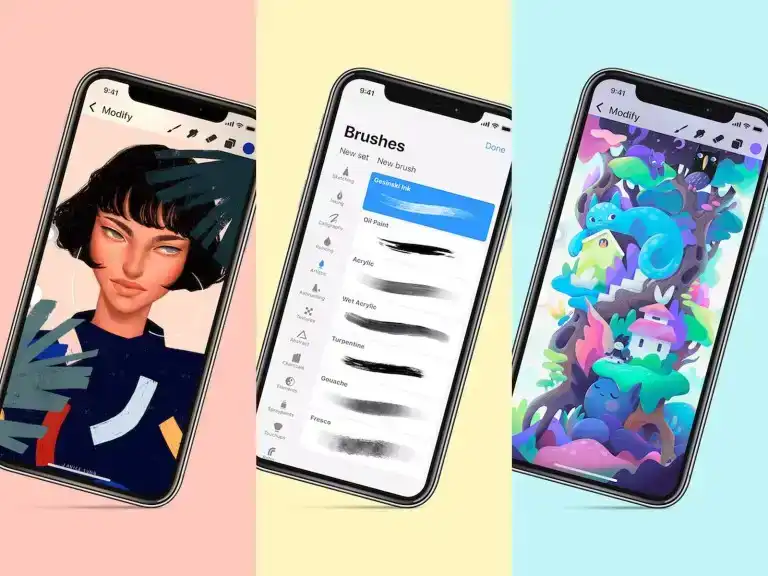
Procreate Pocket provides a wide selection of brushes for sketching, inking, painting, shading, texturing, and other artistic techniques. Brushes can respond to touch and supported stylus input, allowing users to create everything from simple sketches to detailed illustrations.
The combination of Paint, Smudge, and Erase tools makes it easy to build and refine artwork without constantly switching between different applications.
Customizable Brush Library
The Brush Library is one of Procreate Pocket’s most useful features. Artists can choose from different brush categories and customize brushes according to their preferred drawing style.
Brush Studio provides controls for adjusting brush behavior, spacing, grain, rendering, dynamics, and other characteristics. Users can also import brushes and create personalized brush collections for different projects.
Layers and Layer Management
Layers allow artists to separate different elements of an illustration. For example, a sketch can remain on one layer while colors, shadows, highlights, and background elements are placed on others.
Procreate Pocket provides several layer-management options, including:
- Creating and deleting layers
- Reordering layers
- Adjusting opacity
- Duplicating layers
- Merging layers
- Grouping layers
- Applying blend modes
- Using masks
- Transforming layer content
This makes complex illustrations much easier to edit.
Color and Adjustment Tools
Procreate Pocket includes tools for correcting and enhancing artwork. Users can adjust colors, brightness, contrast, saturation, and other visual properties.
Its adjustment options can also be used creatively to produce blur, distortion, noise, sharpening, halftone, glitch, and other effects. These tools are useful for both traditional-looking artwork and experimental digital designs.
Selection and Transformation
Selection tools let you isolate particular areas of an illustration before modifying them. This is useful when you need to recolor, move, resize, duplicate, or transform a specific part of your artwork.
Different selection approaches make it possible to work with irregular shapes as well as rectangular or elliptical areas.
Drawing Guides and Symmetry
Procreate Pocket includes drawing guides that help artists create accurate compositions. Grid, isometric, perspective, and symmetry guides can make technical illustrations and structured artwork easier to produce.
Symmetry is particularly useful for creating balanced designs, characters, patterns, logos, and decorative artwork.
Typography and Text
The Text tool lets users add written content to their artwork. Text can be edited and styled, making Procreate Pocket useful for posters, social-media graphics, comics, lettering projects, and illustrations containing typography.
Users can adjust elements such as fonts, alignment, spacing, and text styling.
Animation and Time-Lapse
Procreate Pocket isn’t limited to static artwork. Animation features allow users to create frame-based animations, while time-lapse recording can capture the creative process.
A time-lapse can be useful for reviewing your workflow or sharing the development of an illustration with other people.
Multi-Touch Gestures
Touch gestures make navigation considerably faster on an iPhone. Artists can zoom into small details, rotate the canvas, undo mistakes, and perform other actions without constantly opening menus.
Common gestures include:
- Pinching to zoom
- Rotating the canvas with two fingers
- Two-finger tap for Undo
- Three-finger gestures for additional editing commands
- Quick pinch for canvas fitting
These gestures make the application feel more natural for mobile drawing.
FacePaint
FacePaint is one of Procreate Pocket’s more distinctive creative functions. It uses the iPhone’s camera capabilities to map artwork onto a user’s face, creating an interactive way to experiment with digital face art.
Compatible device requirements should be checked in Procreate’s current documentation because camera-based features depend on supported hardware.
Procreate Pocket Functions and How to Use It
Create a New Canvas
Start by opening Procreate Pocket and creating a new canvas. You can choose an appropriate canvas size based on whether you are making a sketch, illustration, poster, wallpaper, or another type of project.
Once the canvas is created, select a brush and begin drawing.
Paint, Smudge, and Erase
The Paint tool is used for creating strokes and applying color. Smudge can blend colors and soften transitions, while Erase removes unwanted portions of artwork.
Because these tools use the same general brush system, artists can switch between them while maintaining a consistent brush style.
Work With Layers
Open the Layers panel to organize your project. Keep separate elements on different layers so they can be edited independently.
For example, you can use one layer for line art, another for colors, another for shadows, and another for highlights.
Select and Transform Artwork
Use Selection when you need to isolate part of your artwork. After making a selection, you can move, resize, rotate, or otherwise modify the selected content.
This is especially useful for correcting proportions or repositioning individual elements.
Adjust Colors and Effects
Adjustment tools can be used after painting to refine the appearance of an illustration. Color corrections can make artwork more balanced, while creative effects can give a project a distinctive visual style.
Import and Export Artwork
Procreate Pocket supports importing supported images and other compatible content. Finished projects can also be exported or shared in supported formats.
Exporting is useful when artwork needs to be moved into another application, uploaded to social media, or shared with clients.
Customize Brushes
Open Brush Studio when you want more control over a brush. You can modify its characteristics or create a personalized brush for a particular artistic technique.
Custom brushes are especially useful for artists who repeatedly use a specific texture or stroke style.
Add Text
The Text function can be used when an illustration requires typography. Add your text, choose an appropriate font, and adjust its visual properties before positioning it on the canvas.
Create Animations
Animation tools allow multiple frames to be arranged into an animated sequence. You can draw individual frames and preview the result to refine timing and movement.
Record Your Creative Process
Time-lapse recording captures the development of artwork. This can be useful for personal review, tutorials, portfolio content, and social-media videos.
Download and Install Procreate Pocket on iPhone and iPad
Official Download Method
The safest method is to install Procreate Pocket through Apple’s official App Store. Search for Procreate Pocket and verify that the developer is Savage Interactive before installing.
The basic process is:
- Open the App Store.
- Search for Procreate Pocket.
- Check the developer information.
- Purchase or download the application if available for your account.
- Authenticate with Face ID, Touch ID, or your Apple ID.
- Wait for installation to finish.
- Open Procreate Pocket.
- Create a new canvas and start drawing.
For iPad users, check Apple’s current compatibility information because Procreate Pocket is primarily designed for iPhone, while Procreate for iPad is a separate application.
About IPA Installation
An IPA is an iOS application package, but installing IPA files outside the App Store can involve signing certificates, developer provisioning, device compatibility, and Apple’s security restrictions. For everyday use, the official App Store version is the recommended option.
Also, the title Procreate Pocket IPA does not by itself mean that an IPA has premium or modified features. If a third-party package claims to provide unlocked or modified functionality, its contents and legitimacy should be verified before installation.
Is Procreate Pocket Supported on the Latest iOS?
Compatibility can change as Apple releases new iOS versions and Procreate publishes updates. Procreate’s official documentation should be checked for the current minimum iOS requirement and supported devices.
If you are using a modern iPhone, keeping Procreate Pocket updated through the App Store is generally the best approach for compatibility, security, and bug fixes. An older IPA build may not receive the same compatibility improvements as the latest official release.
Frequently Asked Questions
Is Procreate Pocket available for iPhone?
Yes. Procreate Pocket is designed as the iPhone version of Procreate’s digital art experience.
Is Procreate Pocket free?
Procreate Pocket is a paid application on Apple’s App Store. Pricing and availability can vary by country and may change over time.
Does Procreate Pocket support layers?
Yes. Layers are a core part of the application and can be organized, duplicated, merged, reordered, and adjusted.
Can I use custom brushes?
Yes. Procreate Pocket provides brush customization and supports importing compatible brushes.
Does Procreate Pocket have animation tools?
Yes. Animation functionality allows users to create frame-based animations and preview their work.
Can I add text in Procreate Pocket?
Yes. The Text tool allows users to add and customize typography within their artwork.
Can I use Procreate Pocket on an iPad?
Procreate Pocket is primarily the iPhone-focused version. iPad users should check Apple’s current App Store compatibility and consider the separate Procreate iPad application.
Does Procreate Pocket require an internet connection?
The core drawing workflow does not normally require a continuous internet connection. However, downloading the application, obtaining updates, and using certain online-related services may require internet access.
Conclusion
Procreate Pocket is a compact but capable digital art application for iPhone users who want to draw, paint, sketch, design, animate, and experiment with artwork on the go. Its customizable brushes, layers, selection tools, color adjustments, typography, drawing guides, animation features, time-lapse recording, and touch gestures provide a flexible creative workflow.
For the most reliable experience, users should download Procreate Pocket through Apple’s official App Store and keep the application updated. If you specifically need an IPA version, remember that unofficial IPA packages can introduce compatibility and security concerns, and an older build may not work perfectly with newer iOS releases.